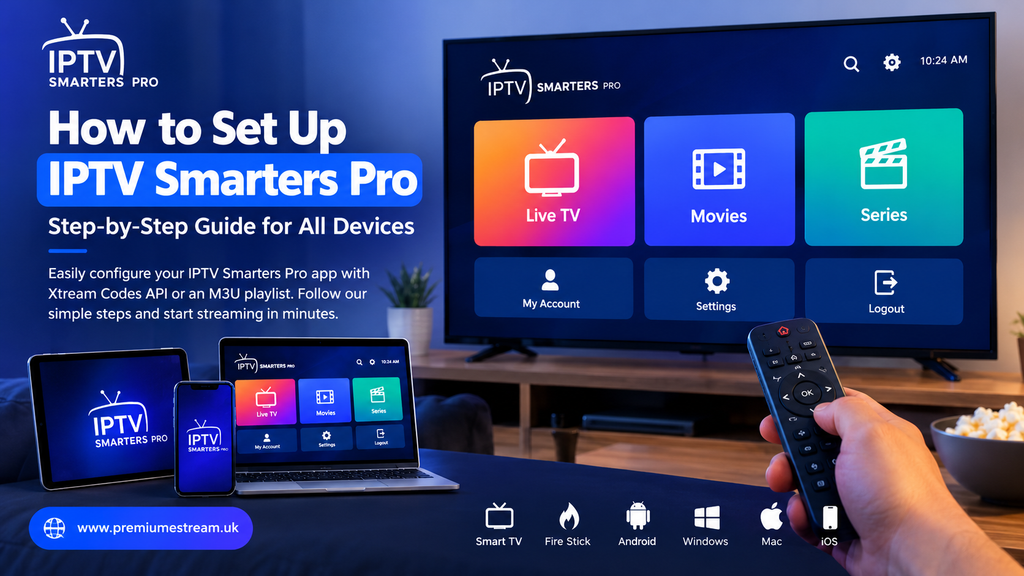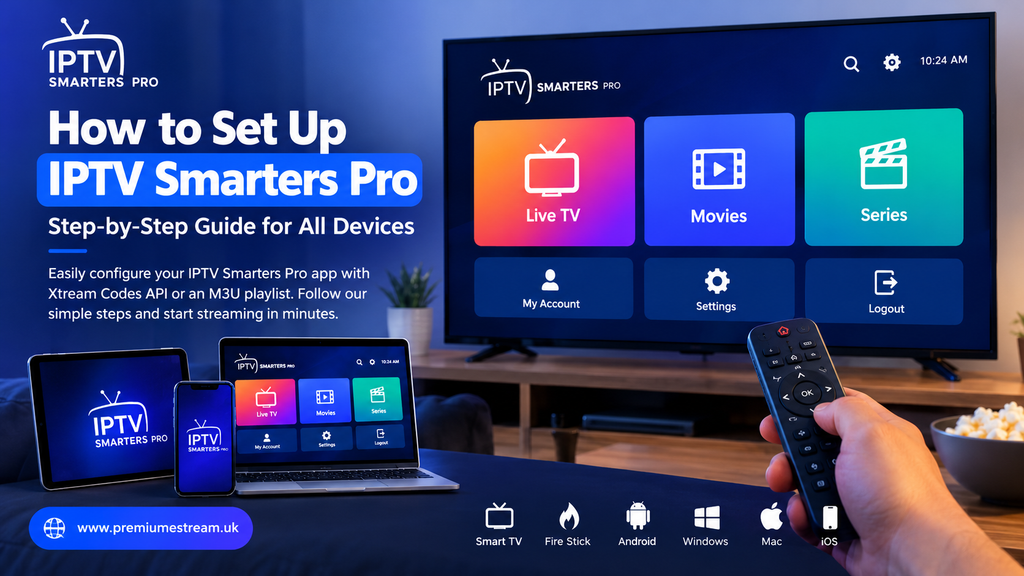
How to Set Up IPTV Smarters Pro: A Step-by-Step Guide
Learning how to set up IPTV Smarters Pro can help you configure a compatible streaming playlist on your preferred device. Whether you use a Smart TV, Fire TV Stick, Android device, computer, or mobile phone, the setup process starts with choosing a compatible application and preparing the correct connection details.
In this guide, you will learn how IPTV Smarters Pro works, how to add a playlist, how to troubleshoot common problems, and what to check before streaming.
What Is IPTV Smarters Pro?
IPTV Smarters Pro is an IPTV media player designed to work with compatible playlists or service credentials. The application does not automatically provide television channels, movies, or series. The content available depends on the playlist or service you configure.
Depending on the application version, supported connection methods may include Xtream Codes API credentials or an M3U playlist URL. Available features can vary by device and app version.
Before choosing a service, check its device compatibility, subscription terms, customer support options, and rights to distribute the content it offers.
What You Need Before Setting Up IPTV Smarters Pro
Prepare the required information before opening your application. Your provider should tell you which connection method to use and supply the relevant details.
| Requirement | Purpose |
|---|---|
| Compatible application | Provides the interface for loading your playlist. |
| Username and password | Used when your service supports credential-based login. |
| Server URL | Identifies the server used for a compatible API connection. |
| M3U playlist URL | Allows you to import a supported playlist. |
| Internet connection | Allows the application to connect and load available content. |
You may not need every item listed above. Use the connection method supported by your application and the instructions supplied with your authorized service.
How to Set Up IPTV Smarters Pro With Xtream Codes API
If your service provides a server address, username, and password, you may be able to configure the application using Xtream Codes API.
Step-by-Step Instructions
- Open the compatible IPTV player on your device.
- Select the option to add a user or a new profile.
- Choose the Xtream Codes API login option, if available.
- Enter a name for your profile.
- Type the username supplied by your service.
- Enter the corresponding password.
- Enter the server URL exactly as provided.
- Review the information and submit the form.
- Wait for the application to connect and load available categories.
Menu labels may differ between application versions. If your version does not offer this connection method, check its documentation or ask your provider which compatible option to use.
Why Use Xtream Codes API?
When supported, this method keeps the server address and login details in separate fields. It can be convenient when your service provides these credentials instead of a playlist URL.
How to Add an M3U Playlist
An M3U playlist is another way to load media sources in a compatible player. Use this method if your service provides a playlist URL and your application supports importing it.
Steps to Import an M3U Playlist
- Open the IPTV player.
- Select the option to add a playlist or user.
- Choose the playlist URL option, if available.
- Enter a name for the playlist.
- Paste the complete M3U URL supplied by your provider.
- Check the URL for missing characters or spaces.
- Save the playlist and wait for it to load.
If the playlist does not load, confirm that the URL is still valid and that your service allows the connection. Avoid sharing your playlist URL publicly because it may contain private access information.
Setting Up IPTV Smarters Pro on Different Devices
Smart TVs
On a Samsung, LG, or other Smart TV, first check whether the application is available and compatible with your model. Install it through an official or trusted source, open it, and follow the available playlist or login instructions.
Amazon Fire TV Stick
Check the availability of a compatible player for your Fire TV device. Install it using an appropriate trusted method, then enter your playlist details or credentials if the application supports them.
Android TV and Android Phones
Find a compatible player through an official app store where available. After installation, follow the on-screen instructions to add a supported playlist or account.
Windows and Mac Computers
Choose a player that supports your operating system and connection method. Using a computer keyboard can make it easier to enter or paste long playlist URLs and login details accurately.
iPhone and iPad
Check the current availability of a compatible player in the Apple App Store. App names, features, and supported connection methods may differ from those on television and Android devices.
Common IPTV Smarters Pro Problems and Solutions
Invalid Details or Login Failed
Check your username, password, and server address. Look for accidental spaces, typing mistakes, or an expired subscription. If the details are correct, contact your provider to confirm that the access is active.
The Application Is Stuck Loading
Close and reopen the application, check your internet connection, and restart your device if necessary. A temporary network or server issue may also prevent content from loading.
Channels or Categories Are Missing
Refresh the playlist if the application provides that option. Check whether the relevant content is included in your service and ask your provider to investigate if the problem continues.
The M3U Playlist Will Not Load
Make sure the entire playlist URL has been copied. Verify that the link has not expired and that your application supports its format. Request a replacement URL from your provider if necessary.
The Application Is Not Available on My Device
App availability depends on the device model, operating system, region, and current app-store policies. Look for a supported alternative from a trusted source rather than installing unknown or modified software.
Tips for a Better Streaming Experience
- Use a stable internet connection.
- Keep your device software and player updated.
- Copy login details carefully.
- Use only playlists and services you are authorized to access.
- Keep usernames, passwords, and playlist URLs private.
- Check device compatibility before choosing a service.
- Contact the relevant provider if a connection problem persists.
Streaming quality can depend on your internet speed, Wi-Fi signal, device performance, and the service’s availability. No single setting can guarantee that buffering will disappear in every situation.
How to Choose a Streaming Service
Before purchasing a subscription, review the service’s terms, supported devices, available customer support, renewal and cancellation conditions, and content licensing information.
Read the offer details carefully and confirm what is included before making a payment. Do not assume that every IPTV player supports every provider or playlist.
To learn more about our website, visit premiumestream.uk. Review the information published there and confirm the current details of any offer before ordering.
Frequently Asked Questions
Is IPTV Smarters Pro a streaming service?
IPTV Smarters Pro is a media player. It does not automatically include television channels, movies, or series. You need a compatible playlist or service with appropriate content rights.
Can I use IPTV Smarters Pro with an M3U link?
Yes, if your version of the application supports importing M3U playlists. Follow the instructions supplied by your provider.
Why are my IPTV login details not working?
Possible causes include incorrect credentials, a mistyped server URL, an expired account, network problems, or a service-side issue. Check your details and contact your provider if needed.
Can I use the same setup on every device?
Not necessarily. Available applications, menus, and connection methods vary across operating systems and device models. Follow the instructions for your specific application.
Is every IPTV service legal?
IPTV is a method of delivering television content over internet networks. Whether a particular service is lawful depends on the content, distribution rights, and applicable laws. Choose services authorized to distribute the content they offer.
Where can I find more information about Premium eStream?
Visit premiumestream.uk to review the information available on the website. Check the current terms and offer details before making a purchase.